Smoothwall Blocking - Abingdon Learning Trust (ALT) Common Issues
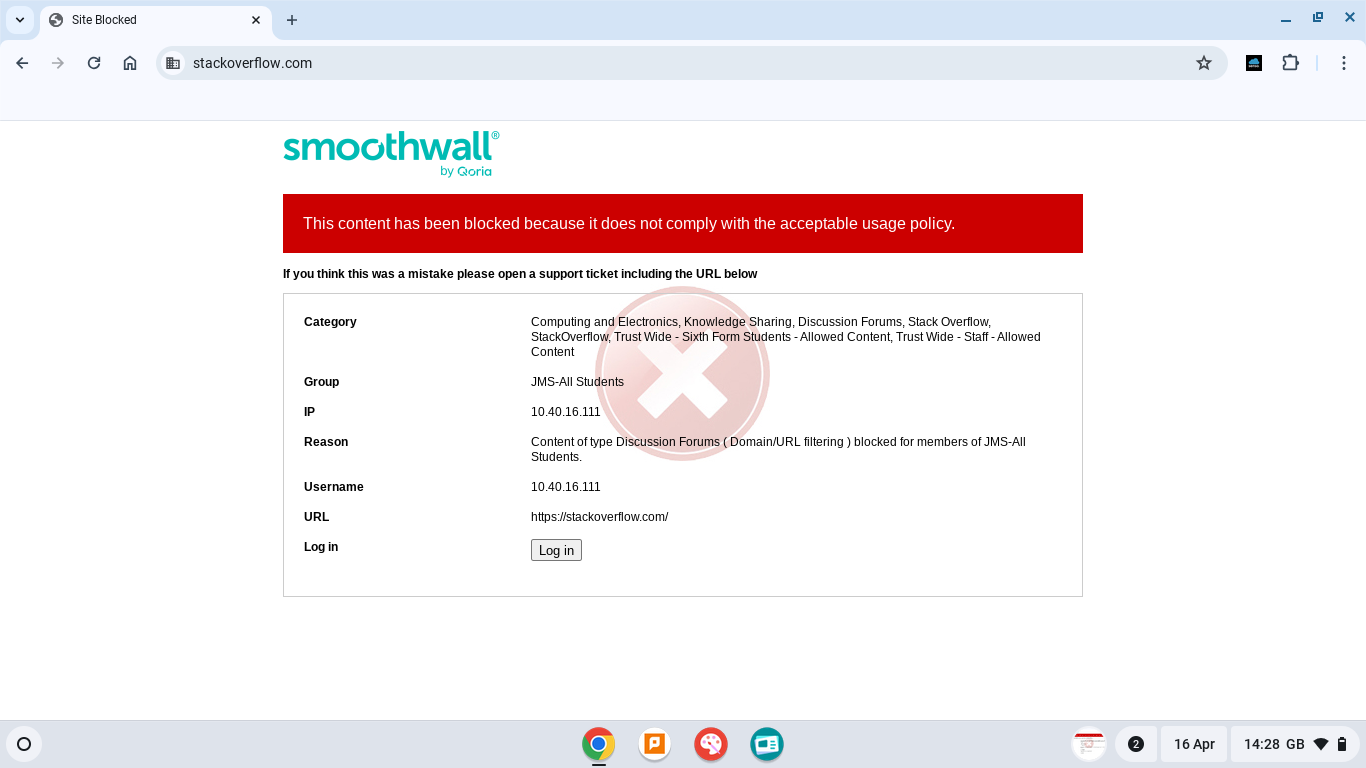
Go HomeI see a "Login" button on the Smoothwall block page.
1. Click the "Login" button.
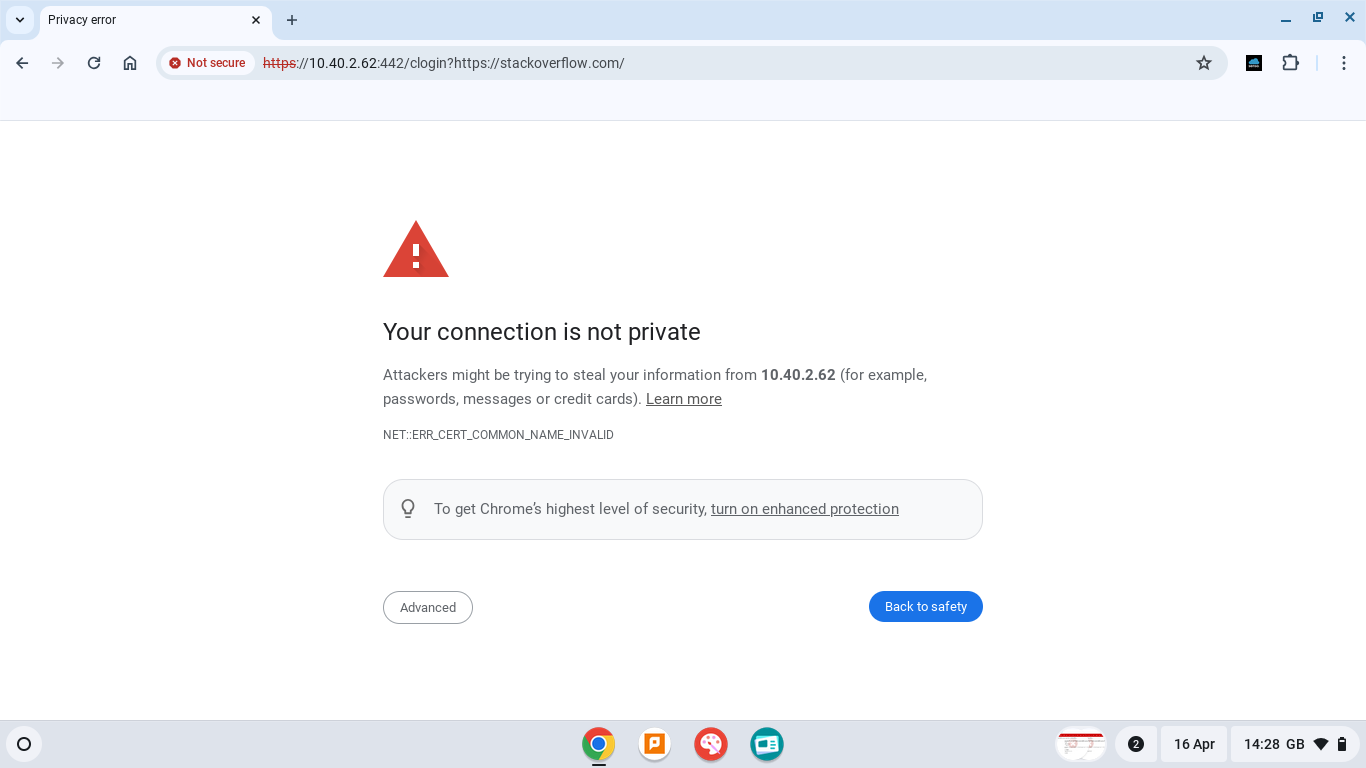
2. You will be show a "Your connection is not private" screen.
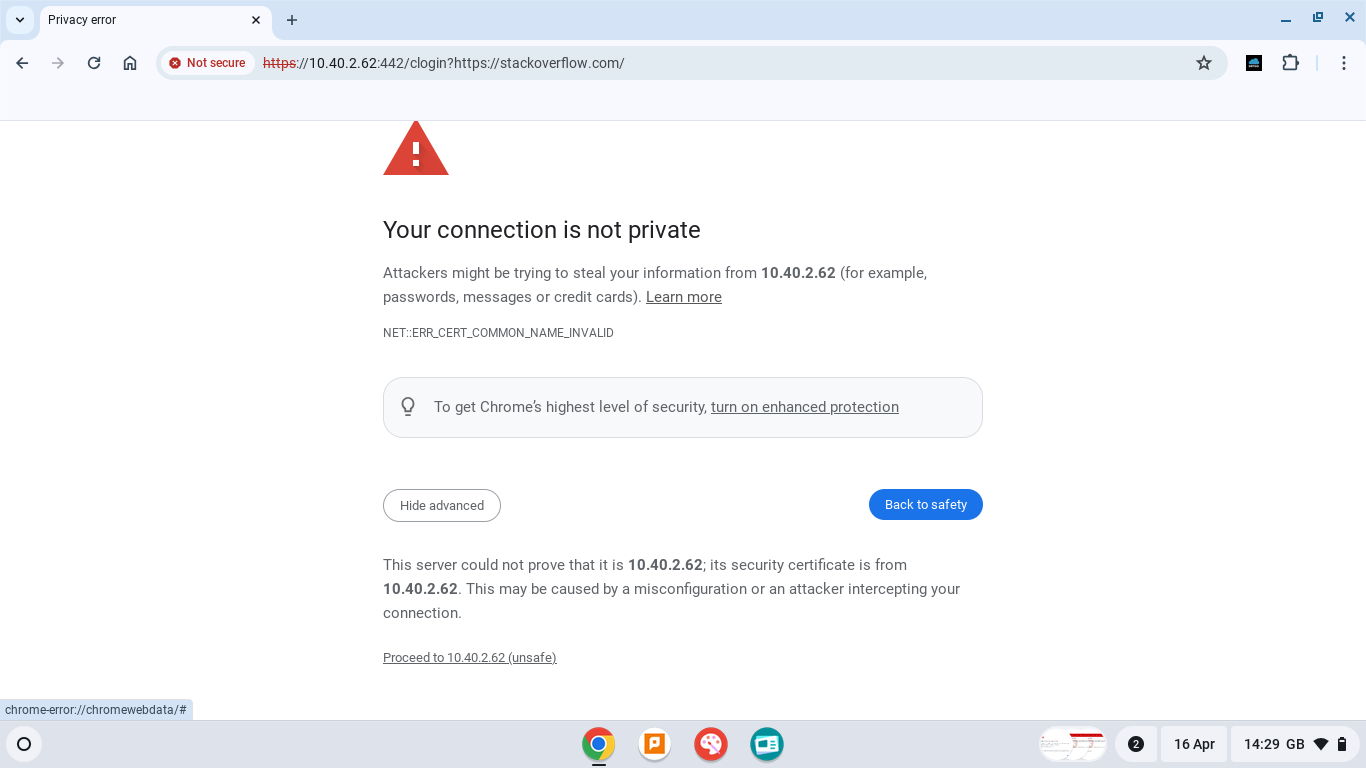
3. Click the "Advanced" button, scroll down, and click "Proceed to [...]".
4. You will be shown the "Smoothwall" login page.
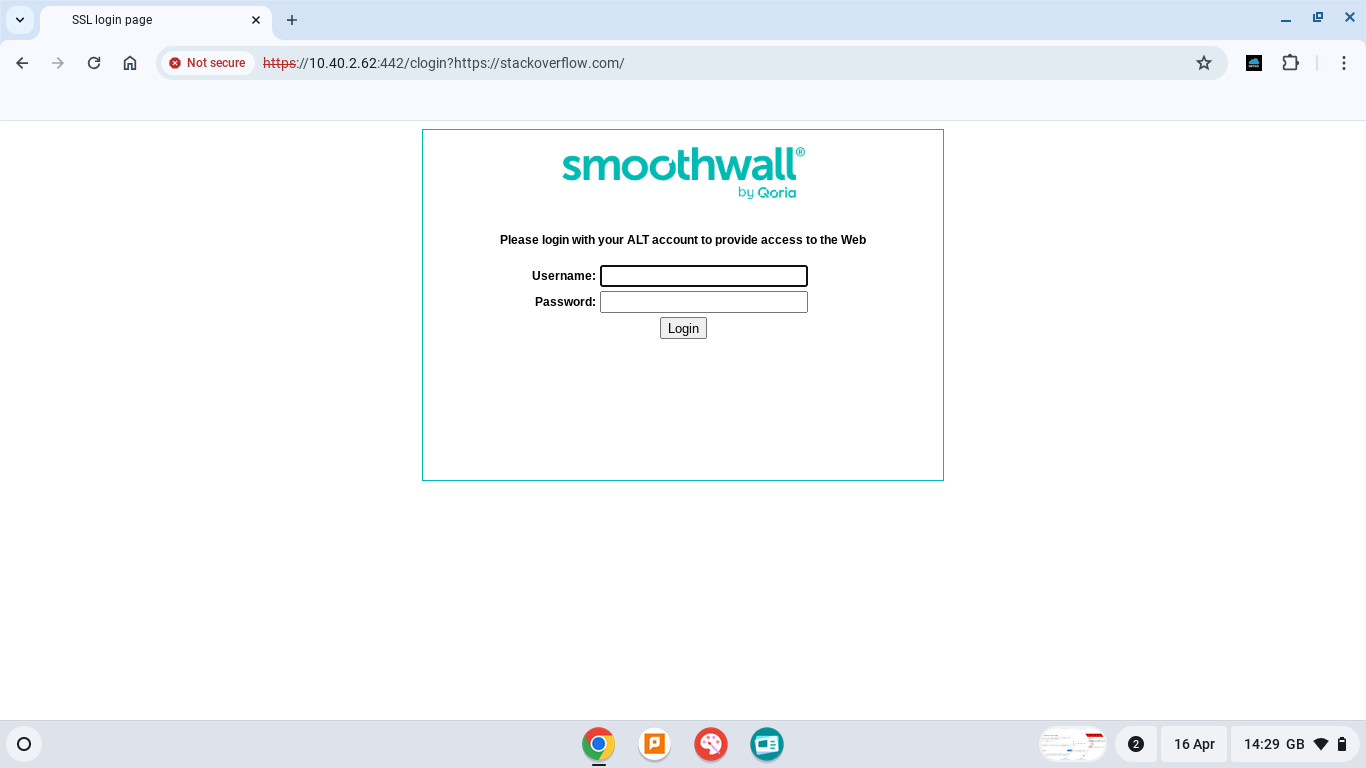
5. Type in the username and password that you would usually use to login to a school PC or Chrombook, and click "Login".
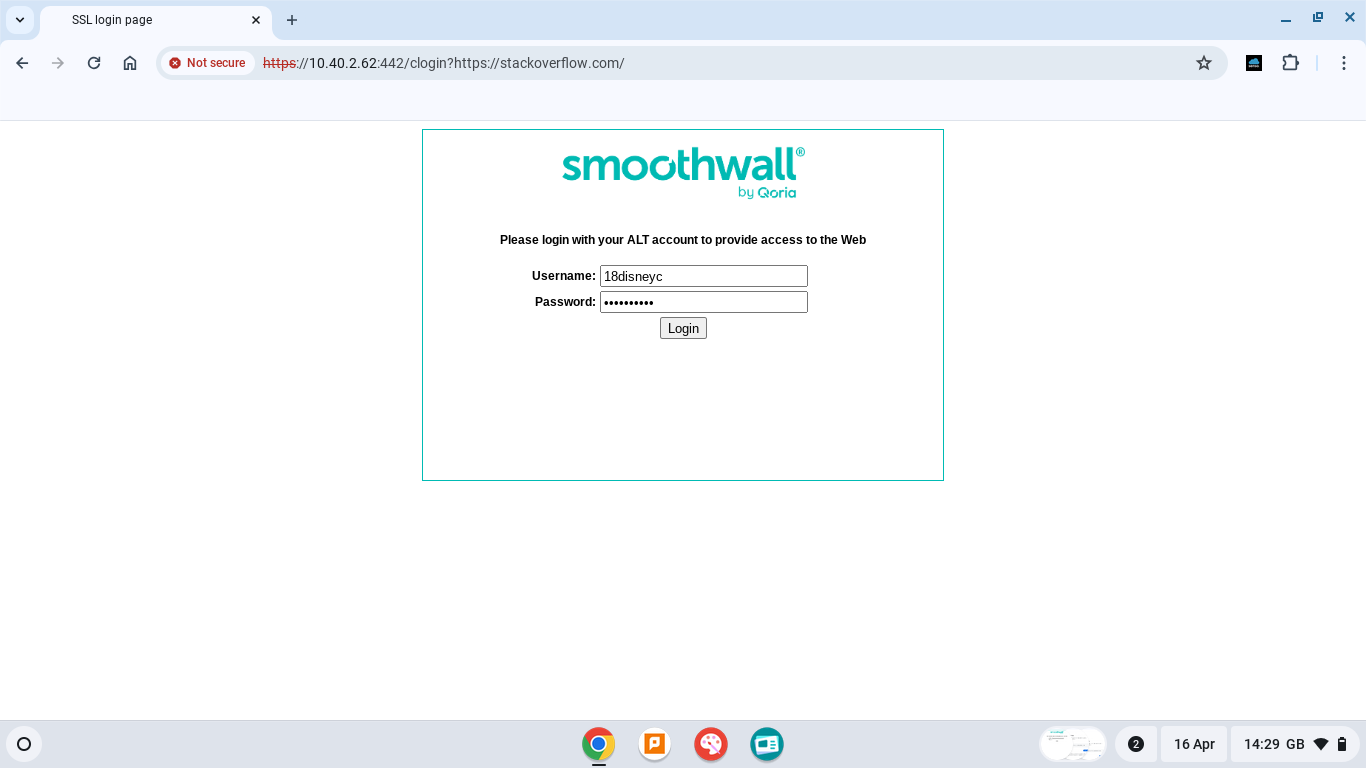
6. The website you were trying to visit should then re-open. If it doesn't, click the link after "Referer", or manually navigate back to the page. If the site displays the Smoothwall block again, then refresh the page.
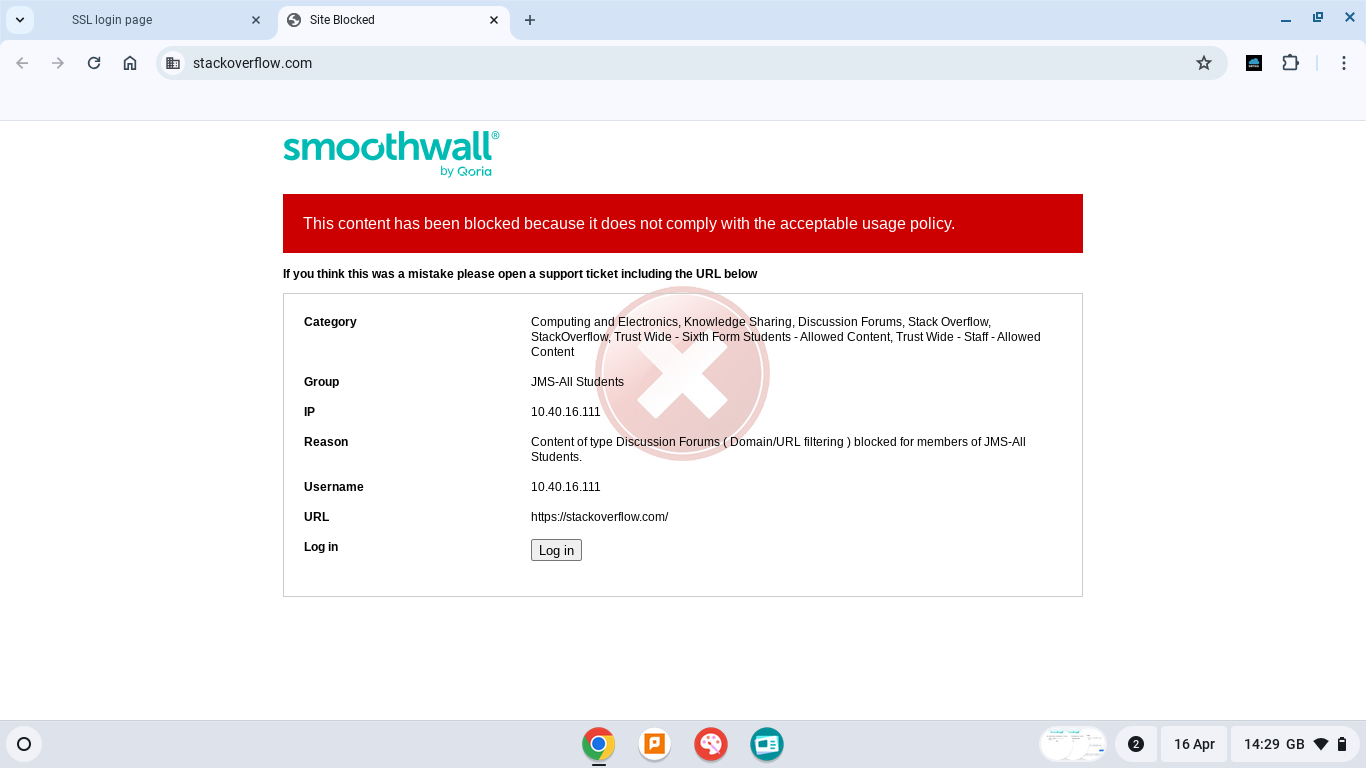
7. The site should then display. If it is still blocked, see "The site is still blocked after logging in." below.
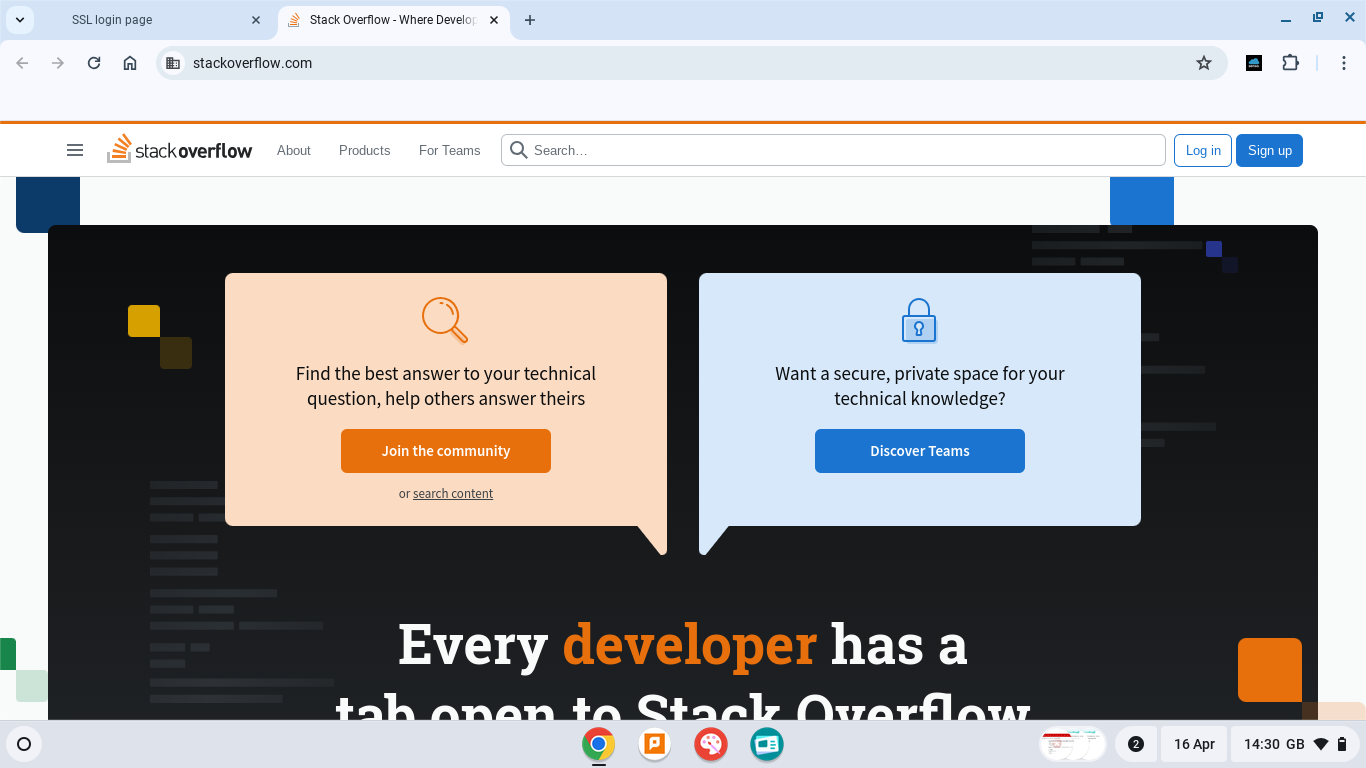
I do NOT see a "Login" button on the Smoothwall block page. (ACTUALLY MAKE THIS ONE CALLUM)
1. Click the "Login" button.
2. You will be show a "Your connection is not private" screen.
3. Click the "Advanced" button, scroll down, and click "Proceed to [...]".
4. You will be shown the "Smoothwall" login page.
5. Type in the username and password that you would usually use to login to a school PC or Chrombook, and click "Login".
6. The website you were trying to visit should then re-open. If it doesn't, click the link after "Referer", or manually navigate back to the page. If the site displays the Smoothwall block again, then refresh the page.
7. The site should then display. If it is still blocked, see "The site is still blocked after logging in." below.
The site is still blocked after logging in.
I am using a school device
If the site is still blocked after logging in, and you are sure that you have followed each step correctly, then the site is fully blocked, and there is no way around this if you are using a school PC or Chromebook.